
What Claude Desktop on a cloud provider is
Anthropic's documentation calls it Claude Desktop on 3P, short for third-party. It's a way of running Claude Desktop that sends all model inference through a provider you configure. The options are Amazon Bedrock, Google Cloud's Agent Platform, Microsoft Foundry, or your own LLM gateway.
Most features stay. The guide says Chat, Cowork, projects, artifacts, memory, scheduled tasks, file upload, skills, plugins, connectors, and Code "are all features of Claude Desktop on 3P." The main change is where things are stored. The guide puts it in one sentence: "Conversation history, projects, and memory are stored on the user's computer."
That one sentence explains most of what follows. In Claude Enterprise, your history lives with your account. In Claude Desktop on 3P, it lives on the machine you're using.
What the import brings over
Each user runs an import wizard in Claude Desktop, under Settings > Import & export. The guide says the import "brings over each user's own chats and projects, plus any Cowork and Code sessions already on their computer."
The wizard has three steps:
- Chats, where you sign in to claude.ai and fetch an export, or choose an export file you downloaded.
- Cowork & Code, where it finds local sessions from an earlier Claude Desktop install.
- Review, where you confirm and import.
A fourth step, Duplicates, appears when an imported project has the same name as one you already have. You choose to merge them or keep them separate.
Two details are worth knowing before you start.
The import is a copy, not a sync. The guide says: "The import is a one-time copy. It doesn't stay in sync with claude.ai, but you can run it again to pick up newer chats without creating duplicates." Run it again on your organization's cutoff date.
Project instructions need your approval. Imported projects bring their instructions, but the guide says the user "reviews and accepts the instructions before they take effect." Open each project after the import and accept them.
What doesn't come over
The guide includes a table of items and whether the import brings them. Several important ones are a no or a partly.
Uploaded files. The guide is direct: "A user's export never includes file contents." It adds: "Chats keep the messages that mention a file, but not the file itself." Gather the original files and add them back to each project.
Memory. "An export contains the user's memory, but the import brings over chats and projects. Copy it by hand."
Personal instructions. These also move by hand. Copy the text from your instructions in claude.ai settings.
Skills you built. Download them from your skills list before you move.
Connectors. They don't come over. Admins set them up again in the new configuration.
Artifacts and files Claude created. Partly. The final version comes over as an output file, but earlier versions don't, and Word, Excel, PowerPoint, and PDF files aren't in exports. Download the ones you need.
Cloud sessions. The wizard imports only sessions on your computer. Finish or download cloud work before the cutoff date.
Other people's content. The import brings your own data only. If you rely on a project a colleague created, they need to import it.
One more limit applies to everything: "Content that a user has deleted, or that your retention settings have removed, isn't included in any export."
How to move memory and instructions
Because memory doesn't come over automatically, the guide gives a manual route.
In claude.ai, ask Claude to write out your memories and copy the text. Then paste what you want to keep into one of two places in Claude Desktop:
- Global instructions, under Settings > Cowork. The guide says they're "included in every session."
- Project instructions, which "apply to every session in that project."
Do the same with your personal instructions. Copy them into a local file before the move so you have them when you set up the new app.
This is a good moment to edit, not just copy. Memory built up over months can include details that are out of date. Paste what's still true.
Shared projects
This one matters most for teams that worked from shared projects. The guide says that in Claude Desktop on 3P, "projects live on each user's computer and aren't shared with other users."
If your team worked from shared projects in Claude Enterprise, each person importing their own history won't recreate that. The guide recommends two replacements:
- Shared instructions and reference material: package them as a skill or plugin and distribute it to everyone.
- Shared files: keep them in the file sharing or repository tools you already use.
Sharing between users isn't available after the move either. The guide's advice for users is to share the output file instead of a link to the chat or project.
What admins turn on first
Users can't import until two settings are on, and both are off by default.
In claude.ai, an Owner or Primary Owner goes to Organization settings > Data and privacy and turns on member data export. The import documentation adds that this toggle doesn't expose one member's data to another, and each member can download only their own history.
In Claude Desktop, an admin turns on the import wizard, through the Enterprise Admin Console or the claudeAiImport setting in managed configuration.
There's one exception to plan around. In a HIPAA-ready organization, member data export can't be turned on, so users can't import claude.ai chats or projects. They can still import Cowork and Claude Code sessions already on their computer.
Admins can also add an import prompt so users see a reminder when they start a chat, limit imports to specific claude.ai organizations, and turn on session export for moving data between devices later.
What changes day to day
The guide's table of user-facing changes is worth reading in full. The parts that affect your context most:
Where you work. "There's no mobile or claude.ai web access." Claude runs only in the desktop app.
History. It's stored on the device, and the guide says that except for SSH remote sessions and any export or copy made, "it exists only on that device, so deleted history can't be recovered." It also says: "Your history doesn't follow you to another computer."
Memory and search. "Memory is stored on the device. Chat-history search and nightly summaries aren't available in Chat." In Chat, Claude won't search your past chats.
Imported chats. The first time you send a message in an imported chat, the app asks you to confirm. The reply then comes from your organization's provider, not from claude.ai.
Long tasks. Sessions are local, so your computer has to be awake for long tasks and scheduled tasks to run.
Some features aren't available at all. The guide lists voice mode, Claude Security, and Claude Tag, and says Claude in Chrome works only with the Enterprise Admin Console.
Changing computers after the move
Because history lives on the device, moving to a new laptop is now a migration of its own. The import documentation describes two ways: your administrator copies your data, or you export it to a ZIP file and import it on the new device.
The guide describes what a session export saves: "a user's Claude Desktop data, such as sessions, projects, memory, scheduled tasks, skills, and uploaded plugins". Both devices need the same operating system and organization. The import documentation adds: "Your data stays on the old device, so keep that device until you finish the move."
Claude Code users
Developers who use the Claude Code CLI have less to move. The guide says: "Each developer's own settings, memory, and local sessions already live on the computer."
What changes is how policy reaches them. Anthropic's article on moving CLI users explains that server-managed settings don't apply when a third-party provider or custom base URL is set, so admins deliver policy through a managed settings file, a macOS profile, or the Windows registry.
We covered how the unified Claude experience combines Chat and Cowork, and what it changes for memory and local projects, in our guide to Claude Enterprise unifying Chat and Cowork.
What people try first
Waiting for memory to appear after the import. It moves by hand.
Expecting project files in imported projects. File contents aren't in the export.
Importing once. Run it again on the cutoff date for newer chats.
Using a shared project as before. Projects live on each user's computer.
Replacing a laptop without exporting. History doesn't follow you.
The manual migration
Step 1: Gather what won't come over
Download files Claude created, collect original uploads, and download your skills.
Step 2: Save memory and instructions
Ask Claude to write out your memories, and copy your instructions into a local file.
Step 3: Run the import wizard
Sign in to claude.ai from Settings > Import & export and fetch your export.
Step 4: Handle duplicates
Choose to merge or keep separate for each project with a matching name.
Step 5: Review each project
Accept project instructions and add your files back.
Step 6: Restore memory and connectors
Paste memory into global or project instructions, and reconnect your connectors.
Step 7: Import again on the cutoff date
Run the wizard once more to pick up newer chats.
The Better Way: Keep your working context independent of where it's stored
This move shows how much of your context depended on where it was stored. Memory lived with your claude.ai account. Shared projects lived with your organization. After the move, both live on one computer at a time. Each change of setup means copying context again.
MemoryLake is a memory layer for that kind of working context, such as preferences, project decisions, and team conventions, kept in one place you maintain and available to the assistants you connect, such as ChatGPT, Claude Code, and Codex.
You write the entries yourself, in your own words. Nothing is read out of, written to, or deleted from your claude.ai account, your exports, your Claude Desktop session store, your Claude memory, or any vendor's store. The import works the way Anthropic describes it.
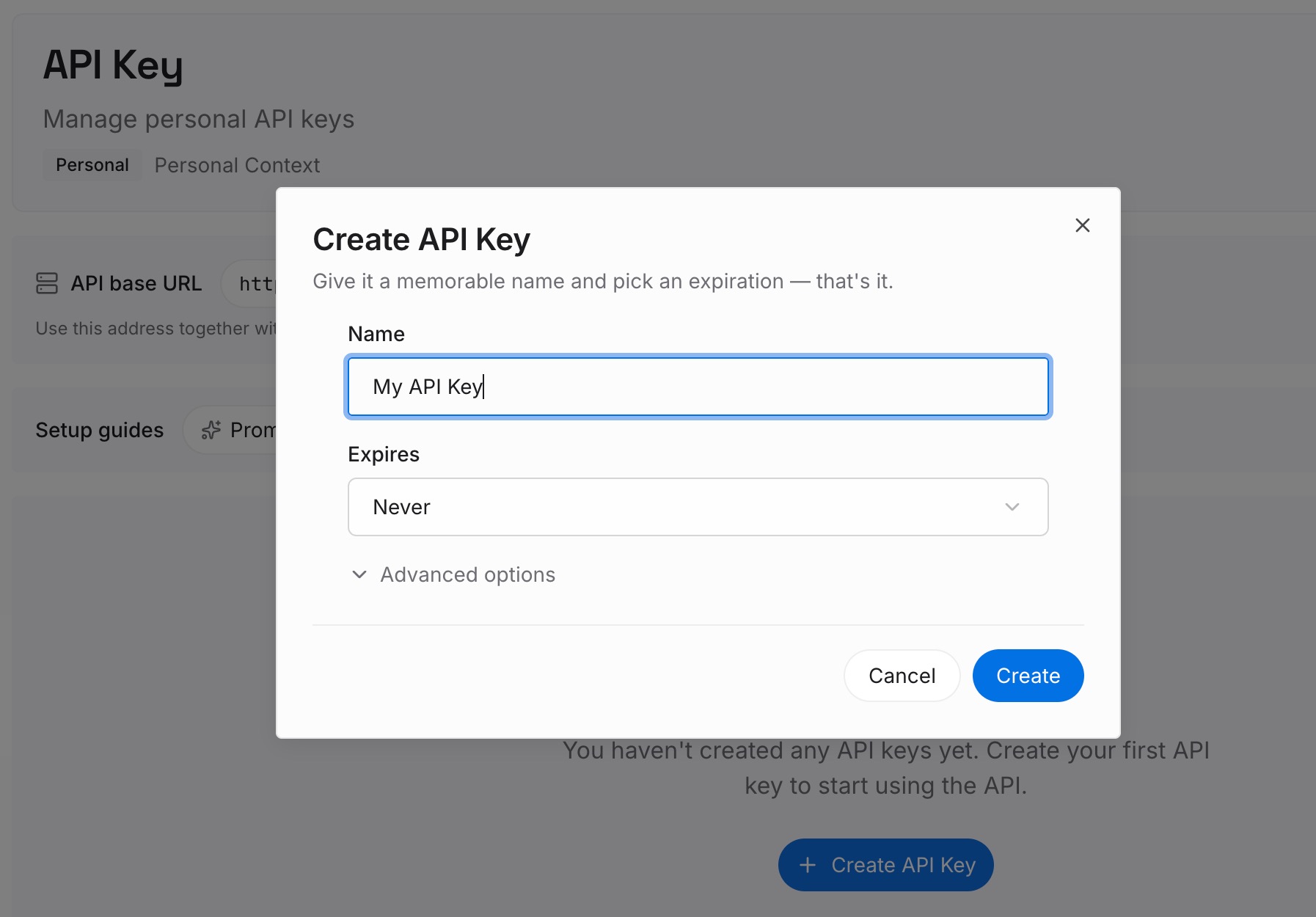
Step 1: Create an API key
Sign in and generate a key from the dashboard. Store it somewhere private, like any other credential.
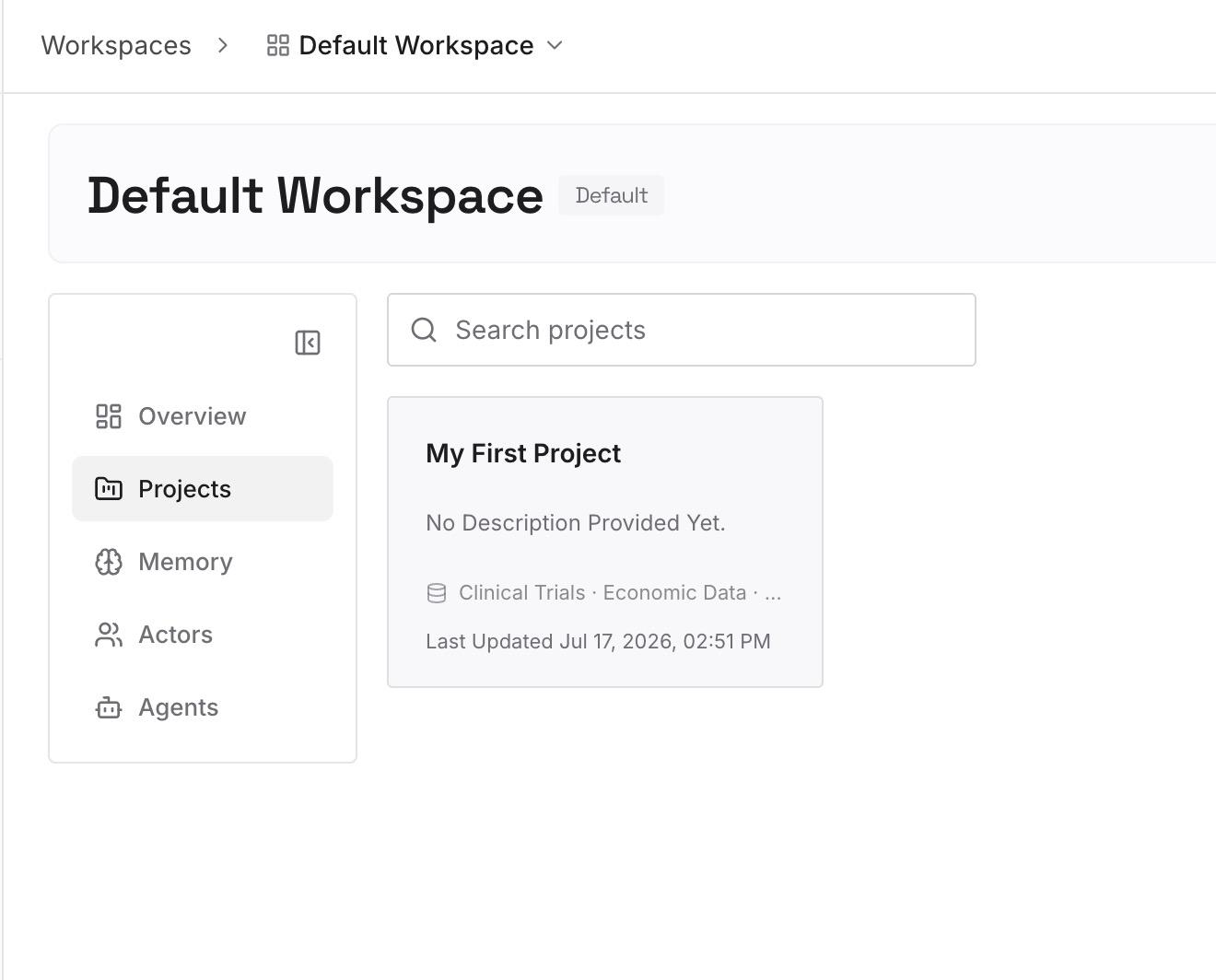
Step 2: Upload your first memories
Start with the memory and instructions you saved in Step 2 of the manual migration. Keep what's still accurate. One topic per entry.
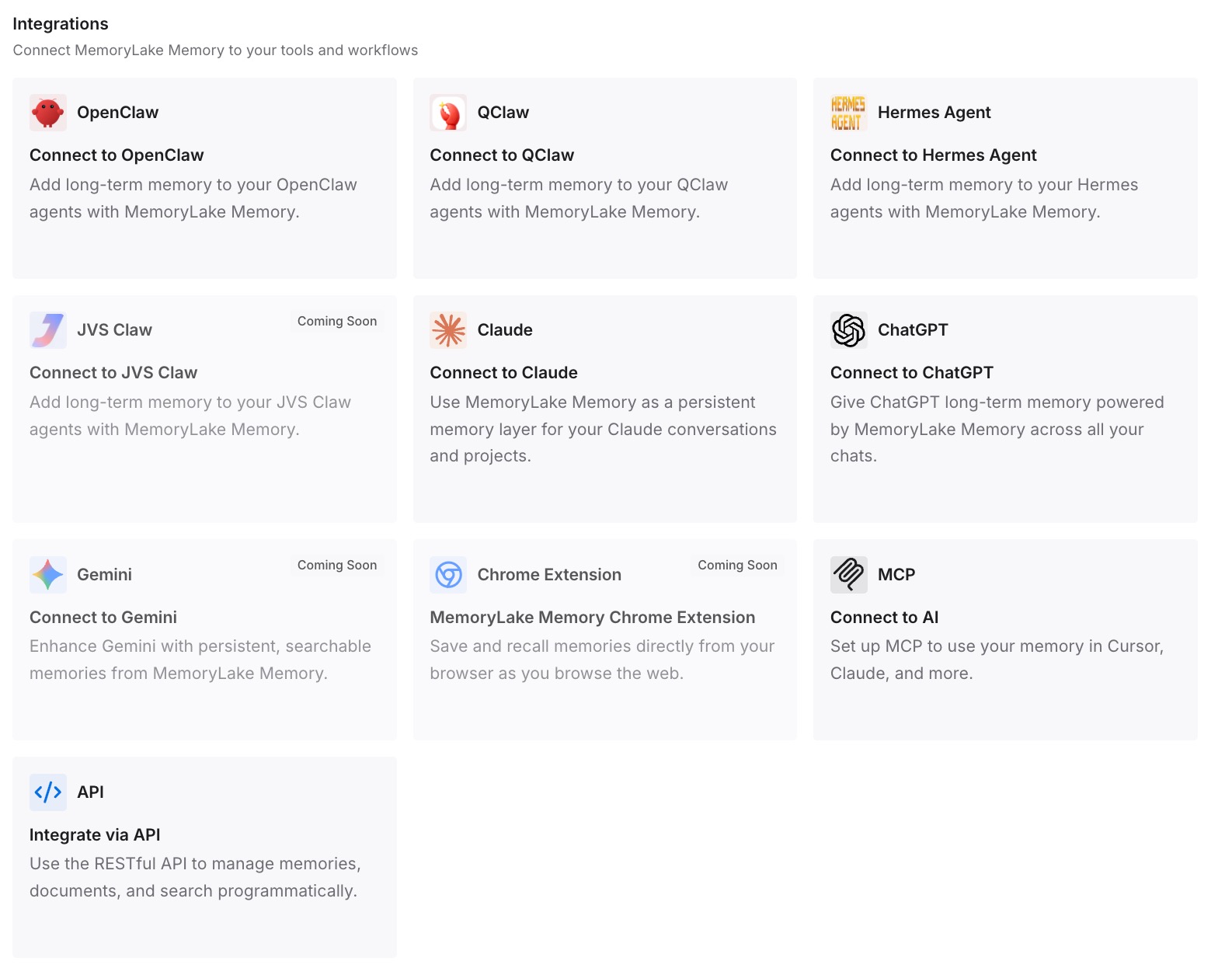
Step 3: Connect your AI & agents
Connect Claude Code, Codex, and the other assistants you use. Each can start from the same context, whichever computer you're on.
What this changes in practice
The first difference is a shorter move. Your preferences don't need to be reconstructed from an export.
The second is less risk from device changes. A new laptop doesn't start your context over.
The third is a shared starting point. Team conventions don't depend on a shared project, which Claude Desktop on 3P doesn't offer.
Best practices for moving to Claude Desktop on 3P
Start with a pilot. The guide suggests testing how the Primary Owner's own history will move.
Set a cutoff date. It's the last day users can access claude.ai, and the final import should run then.
Collect files early. No user export includes file contents.
Edit memory as you copy it. Paste what's still true.
Replace shared projects deliberately. Use a skill, plugin, or shared repository.
Plan device changes. Use session export or ask your administrator before switching computers.
Conclusion
Moving from Claude Enterprise to Claude Desktop on a cloud provider changes where your work lives. Conversation history, projects, and memory are stored on your computer, there's no web or mobile app, and projects aren't shared between users. Each user runs a one-time import that brings over chats, projects, and local Cowork and Code sessions, and can run it again later without duplicates.
Uploaded files, memory, personal instructions, skills, and connectors don't come over on their own. Gather files before the cutoff, copy memory and instructions into global or project instructions, download your skills, and reconnect connectors. After the move, treat a device change as its own migration.