
What a skill is
OpenAI's skills article opens with a definition: "Skills are reusable, shareable workflows that help ChatGPT complete specific tasks more consistently. A skill can include instructions, examples, and code."
It adds: "After a skill is created and installed, ChatGPT can automatically use one or more skills when they are helpful."
A skill can also hold more structure: "It can also include reusable steps and scripts for more structured work." For the weekly update, that might be the format, a template, and the rule that blockers always come first.
There are several ways to make one. The article lists creating with chat, creating with the editor, uploading from your computer, and installing skills shared with you or your workspace. When you ask ChatGPT to create or change a skill, "it automatically uses the skill-creator skill to help generate, update, or troubleshoot it."
Uploaded skills are scanned. The article says some may be marked Needs Review or Blocked, and that "The scan should not replace your own review, policies, or judgment".
What a plugin bundles
The plugins article lists what a plugin can include:
- "Skills that provide instructions and workflow guidance."
- "Connected apps that link external accounts, information, and actions."
- "App templates that help administrators configure apps for a workspace."
- "Extensions that let you interact with apps, mention items in a prompt, open or edit supported files, and use forms or plugin settings."
Its FAQ gives the clearest contrast between apps and plugins: "An app connects ChatGPT to an external service, such as Google Drive or Slack, so it can access information or perform supported actions. A plugin packages capabilities into a workflow and can include one or more apps, skills, or both."
Not every plugin connects to anything. "Some plugins include only skills and do not connect to an external service."
And installing a plugin doesn't skip permissions: "Installing a plugin may start an app-connection or setup flow. You must still complete any required account authorization, and installation cannot bypass provider or workspace permissions."
When to build a skill and when to build a plugin
The articles suggest a simple split.
Build a skill when the task needs instructions, examples, or a script, and nothing outside ChatGPT. The plugins article gives an example: "A skill can provide reusable instructions, such as a weekly-update format, without connecting to an external service."
Build a plugin when the task needs instructions plus access to other services, or when you want to share a complete workflow. The article puts it this way: "Create a plugin to bring the instructions and tools for a task together in one place. You can include skills, connected apps, or both."
To make one, the article says to install Plugin Creator from the directory and describe what you want. Its example is the weekly project update plugin from the opening, gathering progress from Slack and Linear and adding a skill that uses a template.
If you're replacing a custom GPT, the article notes you may be able to migrate its published instructions and knowledge into a plugin.
Who can create and share each
This part needs care, because the two have different availability.
Skills are limited to certain plans. The skills article says: "Skills are available to eligible ChatGPT Business, Enterprise, Healthcare, and Edu users, subject to workspace settings and product availability." The plugins FAQ repeats it for personal skills.
Plugins are broader. "The plugin directory is available across ChatGPT plans. Installing or using an individual plugin depends on your plan, workspace, role, region, and its included capabilities."
So on a personal plan, you may be able to browse and install plugins but not create skills in ChatGPT.
Sharing also differs. Skills can be shared with people, groups, or the whole workspace, or published to the workspace library. Plugins can be shared with invited people, with anyone in the workspace who has the link, or made visible in the workspace directory. The plugins article notes: "Users on Business and Enterprise workspaces can share plugins with other members of their workspace." And: "New workspace plugins start private."
Sharing doesn't widen access to connected services: "Sharing a plugin does not change a connected account's permissions in the external service."
How ChatGPT decides when to use them
Both can work without being called by name.
For plugins: "ChatGPT automatically uses your installed plugins when they're relevant to your request." You can also pick one directly with an @ mention, the plus button, or the Plugins option in the composer.
For skills, as quoted above, ChatGPT "can automatically use one or more skills when they are helpful."
Both articles describe automatic use for skills and plugins you've installed. In a workspace, administrators can install plugins for members: an installation policy of Installed means "The plugin is installed automatically for eligible workspace members".
Why the same plugin shows up in Codex
This is the third part of the opening example. OpenAI's plugin documentation says: "Both products use one universal plugin directory, so the same public plugins are discoverable from their supported surfaces."
It lists where plugins work: "Plugins work in Chat and Work across ChatGPT on the web, desktop, and mobile, and in Codex in the ChatGPT desktop app." The Codex CLI has its own plugin browser, opened with /plugins. The documentation adds: "The IDE extension doesn't support plugins."
So a plugin installed in the desktop app can add skills and tools to new chats in Chat, Work, or Codex. Skills themselves can be managed separately across products. The skills article says skill permissions "govern workspace-managed skills in ChatGPT. Skills used in other OpenAI products, including Codex, may be governed separately."
Some plugins are specific to one place. The plugins FAQ says: "Some plugins are local to Codex or designed for Codex-specific workflows." Others are marked Desktop only, which means they require the desktop app and can't run on the web.
We covered how Claude separates the same two ideas, including where its plugins and skills overlap, in our guide to Claude plugins and skills.
How workspace controls differ
Administrators manage the two in different places.
For skills, Enterprise and Edu admins can control which roles can enable, upload, share, publish, and install skills. There's also an admin Skills page for reviewing individual skills, with owners, access, and recent usage.
For plugins, the article lists separate permissions to use, upload, create with MCPs, share, and publish plugins. It also says: "Plugin and app controls remain separate even when they appear on the same plugin detail page. Plugin settings govern availability and installation; app settings govern account access, actions, and provider restrictions."
That separation has a visible effect. "Disabling an app does not necessarily uninstall a plugin. The plugin may remain visible in Codex, and skills that do not depend on the app may continue to work."
What neither one is designed to hold
Skills and plugins describe how to do a task and which tools to use. They're shared across a team, installed once, and used again and again.
What they're not designed to hold is the changing context of your work: what you decided last week, which client prefers which format, which blocker was resolved. A skill's template says blockers come first. It doesn't know what this week's blockers are. Those details come from the conversation, the connected apps, or ChatGPT's memory, depending on your settings.
That's a reason to keep skills focused on the method and keep fast-changing facts out of them. A skill that has to be edited every week is doing a job better handled somewhere else.
What people try first
Looking for skills on a personal plan. Skills are for eligible Business, Enterprise, Healthcare, and Edu users.
Building a plugin when a skill would do. If nothing outside ChatGPT is needed, a skill is simpler.
Expecting a plugin to grant app access. Installation can't bypass provider or workspace permissions.
Assuming sharing publishes publicly. Publishing to a workspace directory doesn't publish to the public directory.
Looking for plugins in the IDE extension. The documentation says it doesn't support them.
The Fix: Separate the method from the context
Step 1: Put the method in a skill
Format, steps, examples, and scripts belong in the skill.
Step 2: Bundle tools with a plugin
Add the app connections the workflow needs, and share the plugin.
Step 3: Check where it runs
Confirm whether the plugin works on web, desktop, mobile, and in Codex.
Step 4: Keep changing facts out of the skill
Write down the current decisions, preferences, and status separately.
Setting this up in MemoryLake
A skill captures how a task is done. The context the task draws on, such as current priorities, each client's preferences, and the decisions made since the last update, can change faster than a skill gets updated. Kept separately, it can be updated without editing the workflow.
MemoryLake is a memory layer for that kind of working context, such as decisions, preferences, and project status, kept in one place you maintain and available to the assistants you connect, such as ChatGPT, Claude Code, and Codex.
You write the entries yourself, in your own words. Nothing is read out of, written to, or deleted from your skills, your plugins, your connected apps, your ChatGPT memories, or any vendor's store. Plugins and skills work the way OpenAI describes them.
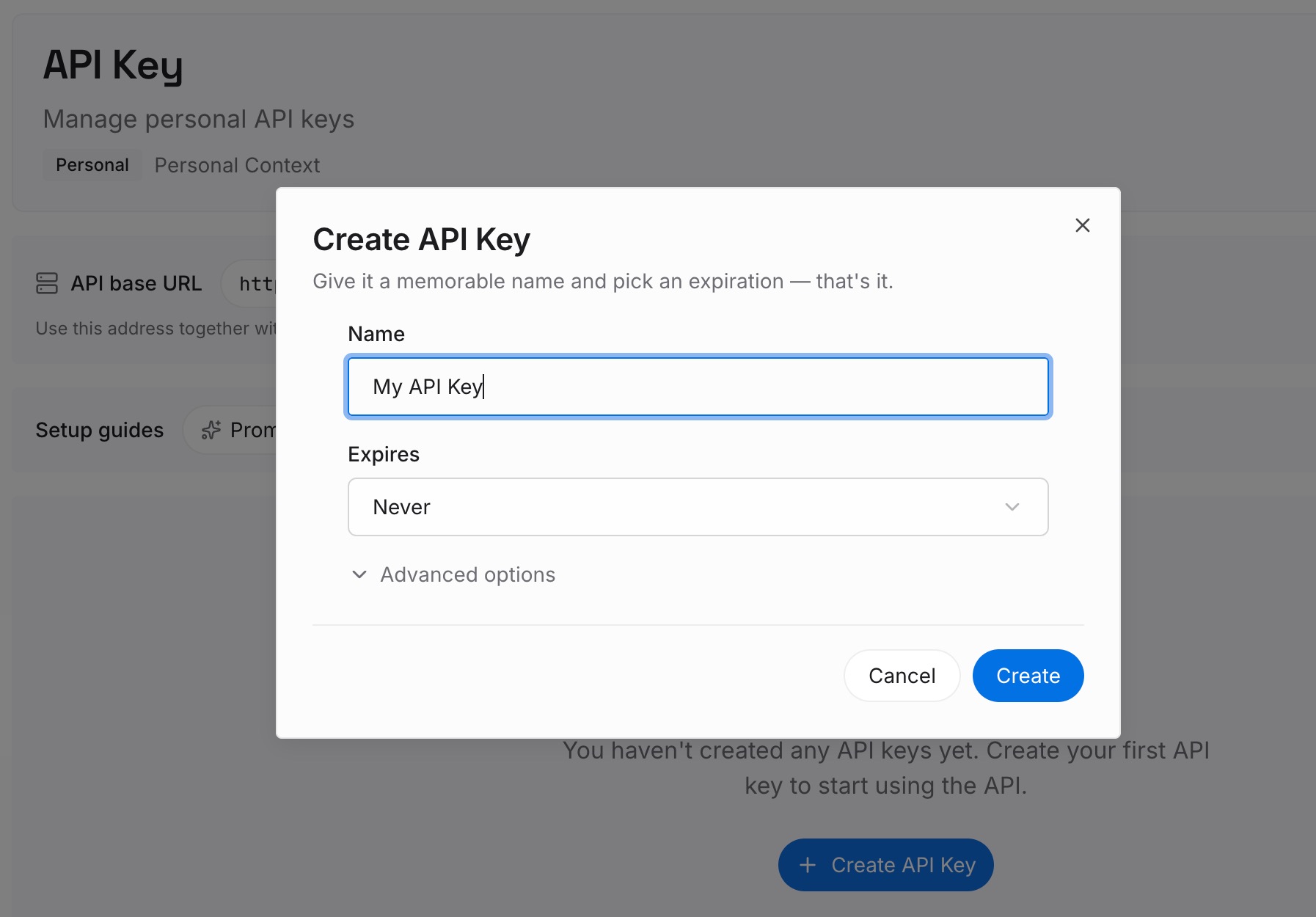
Step 1: Create an API key
Sign in and generate a key from the dashboard. Store it somewhere private, like any other credential.
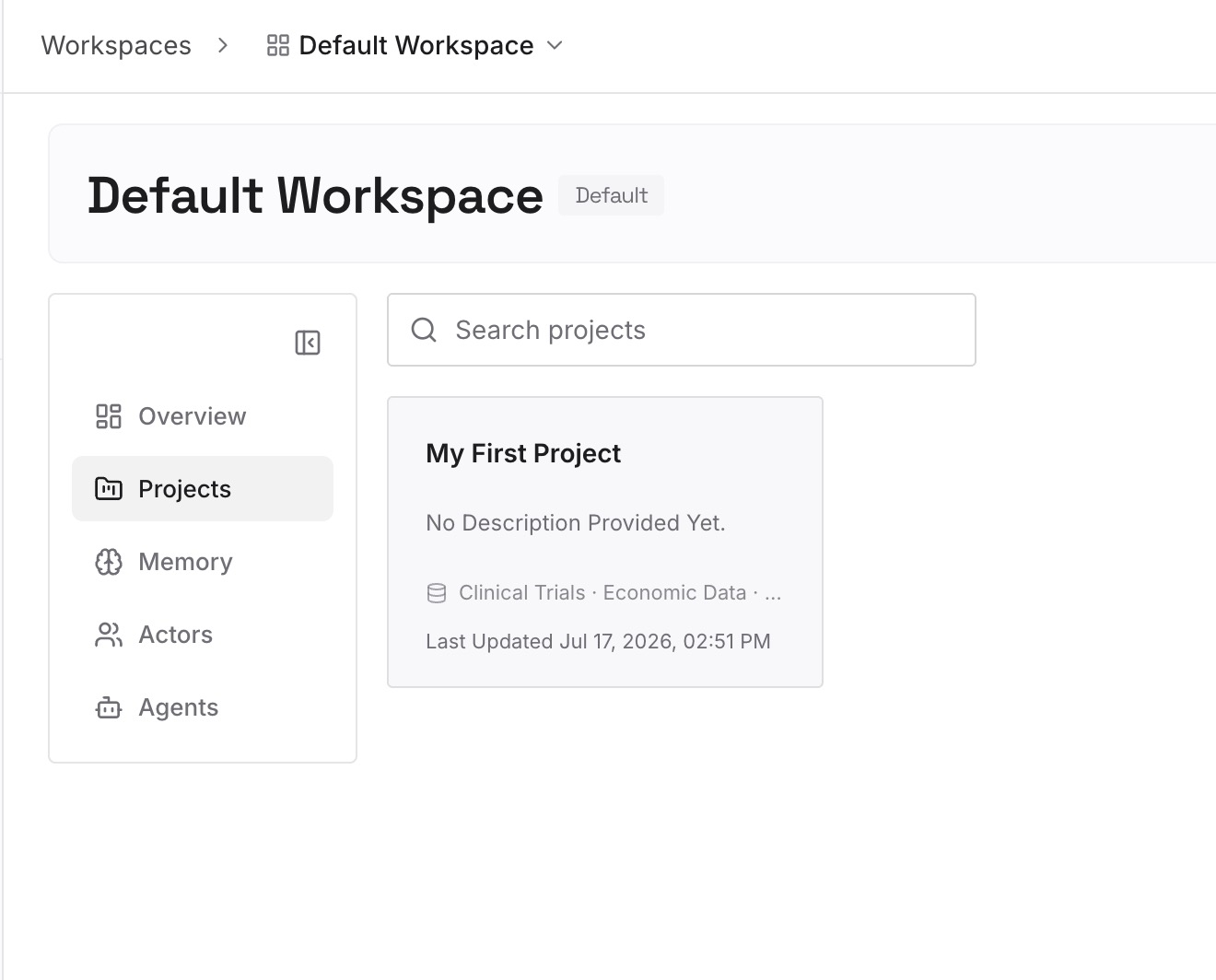
Step 2: Upload your first memories
Start with what you wrote in Step 4 of the fix: the facts your workflows depend on. One topic per entry.
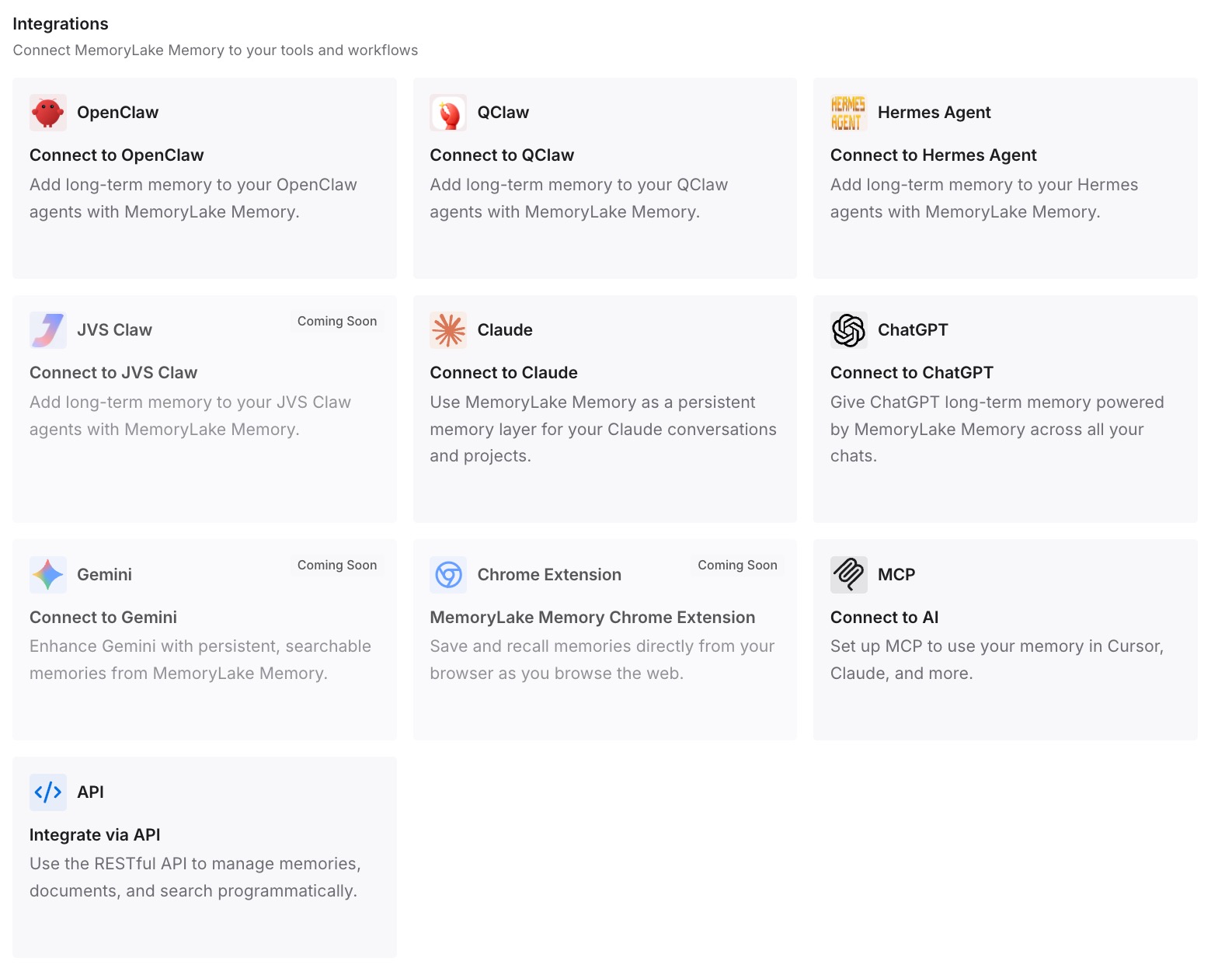
Step 3: Connect your AI & agents
Connect ChatGPT, Codex, Claude Code, and the other assistants you use. Each can draw on the same context.
What this changes in practice
The first difference is more stable skills. The method stays fixed while the facts change.
The second is easier updates. A new priority is one entry, not a skill revision.
The third is consistency across tools. The same context is available in ChatGPT, Codex, and other assistants.
Best practices for plugins and skills in ChatGPT
Start with a skill. Add a plugin when you need apps or a shareable bundle.
Check plan availability. Skills and plugins have different eligibility.
Review uploaded skills. The scan doesn't replace your own review.
Test before sharing. New workspace plugins start private, so you can check them first.
Know where it runs. Desktop only plugins don't run on the web.
Manage apps and plugins separately. Disabling one doesn't always change the other.
Conclusion
In ChatGPT, a skill is a reusable workflow of instructions, examples, and code that ChatGPT can use automatically once installed. A plugin is a package that can include skills, connected apps, app templates, and extensions, and it can't bypass the permissions of the apps it uses. Skills are available to eligible Business, Enterprise, Healthcare, and Edu users, while the plugin directory is available across plans.
ChatGPT and Codex share one plugin directory, so the same plugin can appear in Chat, Work, and Codex in the desktop app, though the IDE extension doesn't support plugins and skills may be managed separately per product. Use skills for the method, plugins for the bundle, and keep fast-changing context somewhere you can update without editing either.