
What agent mode was
The help article still describes how it worked: "To start using agent mode, select it from the tools menu or type /agent in the composer. Describe the task you want completed, and the agent will begin executing it."
It worked through a virtual browser and took screenshots of that browser window to read pages. The article says the screenshots are what let it act: "This allows it to click buttons, fill out forms, and navigate websites."
It could also use apps as data sources, and you could set a finished task to repeat. The article says: "After a task finishes, you can set it to repeat daily, weekly, or monthly by selecting the Clock icon."
The help article doesn't give a date for the retirement in the notice, and OpenAI's separate agent release notes page doesn't list one either. The help page's last update was about three weeks before this guide was written.
What replaced it
The notice names two replacements.
ChatGPT Work. OpenAI's Work and Codex article describes the split in ChatGPT: "Chat is for fast, conversational assistance and everyday questions. Work is an agent designed for longer, multi-step work and finished deliverables."
Cloud browser. The cloud browser article says it "gives ChatGPT Work its own browser on a separate computer in the cloud. It can read web pages, click buttons, enter information into forms, and carry out steps on supported public and signed-in websites."
You don't pick the cloud browser yourself. The article says: "You do not need to select the cloud browser separately. ChatGPT chooses when to use it." If a connected app or plugin can do the task directly, ChatGPT may use that instead.
Availability is narrower than agent mode's was. Agent mode was listed for Pro, Plus, Business, Enterprise, and Edu. The cloud browser article says: "Cloud browser is available in ChatGPT Work on paid ChatGPT plans in supported regions, excluding Free and Go."
We covered what Work shares with Chat and Codex, including memory, projects, and chat history, in our guide to ChatGPT Work mode.
What happens to your old agent chats and screenshots
The retirement notice doesn't say your old agent conversations were removed. The retention section of the same article describes how they're kept: "Your chats in ChatGPT agent, browsing history in ChatGPT agent, and screenshots associated with those conversations, are retained until you delete them."
Deleting is the way to remove them. The article says: "Deleting a chat deletes the screenshots taken during that chat. Deleted chats and associated screenshots will be deleted from our systems within 90 days."
It also describes what screenshots didn't capture: "When you're controlling the browser, ChatGPT doesn't capture passwords or sensitive data you manually enter."
So if you used agent mode for anything sensitive, such as a bank portal or a medical form, the conversation and its screenshots are still in your history unless you deleted them. Review them now, and delete the ones you don't want kept.
On training, the article points to the general data controls: turn off the model improvement setting under Settings > Data Controls, and new conversations, including screenshots, won't be used for training.
What the article said about saved logins
Agent mode's virtual browser kept you signed in between tasks. The article says: "Cookies persist across sessions for convenience, just like a regular browser."
It also gave the way to clear them: "To clear saved logins or cookies, sign out of sites and remove cookies in your ChatGPT data control settings."
The retirement notice doesn't say what happened to those agent cookies. If you signed agent mode into accounts, check your data controls for anything you can still clear, and consider signing out of those accounts from the sites themselves.
How the cloud browser handles sign-ins
The cloud browser keeps its own sessions, separate from your device. The article says: "Cloud browser is separate from the browser on your device. It keeps its own cookies, browser data, and signed-in sessions. It does not use your personal browser's open tabs, browsing history, saved passwords, cookies, extensions, or existing sign-ins."
Signing in works through a secure form rather than the chat: "Credentials entered through the secure form go directly to the remote browser. The username and password entered there are not visible to the model, and ChatGPT does not store those sign-in credentials."
After that, the session persists: "The authentication will persist for future tasks until it expires, so you do not need to sign in each time."
To clear it, open Settings, select Cloud browser, and manage cookies under browser data. You can clear all sites or individual ones. The article notes: "Clearing a site's data signs you out of the website."
How website access works now
The cloud browser asks before visiting new sites. "By default, ChatGPT will ask for your permission before accessing a new website in the cloud browser." Under Settings > Cloud browser, you can choose to always ask, to auto approve with a pause for anything that seems unsafe, or to always allow, which the article says "is not recommended."
Access isn't the same as approval to act. "Website access permission is separate from approval for consequential actions." The article says ChatGPT will ask for confirmation in chat before actions such as confirming a booking or making a payment.
Tasks can also run without you: "You can start a task on web or mobile and let ChatGPT keep working after you leave the conversation or close your computer. It pauses when it needs your input, sign-in, or confirmation."
Where browser tasks run now
There are now two browsers in ChatGPT, and the cloud browser article draws the line: "Cloud browser runs on a remote computer for tasks you delegate through ChatGPT Work. The built-in browser is inside the ChatGPT desktop app, where you can inspect, follow, and annotate pages as you work."
So for errands you'd have handed to agent mode, the cloud browser is the closest match. For pages you want to work on together, or local development pages, the desktop app's built-in browser fits. We covered how the built-in browser and the browser extension differ, including which one uses your signed-in sessions, in our guide to Codex's browser and the Chrome extension.
How usage works now
Agent mode had its own monthly message allowance, and the article says "each unique agent invocation will count against the monthly message limit." That included agent requests that ran as part of scheduled tasks.
Work is measured differently. OpenAI's Work and Codex article says: "Work follows the same usage structure as Codex." It adds that the Codex pricing examples are based on coding tasks, "so Work usage will vary by task."
So the old agent allowance isn't a guide to what a similar errand costs in Work. Check your plan's Work and Codex usage after running a few of your usual tasks.
When a website blocks the task
Some errands that worked once may not work in the cloud browser. The article explains: "Some websites use security measures that restrict access from automated browser agents. A website may block ChatGPT from accessing the site or completing your task, even if the same website works normally in your own browser."
It says these restrictions are set by the website, and suggests trying another site or opening the page in your own browser. It also recommends a connected app or plugin when one supports the task directly.
What to check about recurring tasks
If you set agent tasks to repeat, the agent article says they could be managed at chatgpt.com/schedules. It also says agent requests that are part of scheduled tasks counted toward the agent message limit.
The retirement notice doesn't describe what happens to recurring agent tasks. Open your scheduled tasks and review any that were created with agent mode, and recreate the ones you still need as Work tasks.
What people try first
Typing /agent in the composer. Agent mode is no longer available. Start the task in Work.
Looking for the cloud browser in Chat or on Free. It's in Work on paid plans, excluding Free and Go.
Assuming old agent chats were deleted. They're retained until you delete them.
Expecting the cloud browser to use your device's logins. It keeps its own sessions.
Pasting passwords into the conversation. The article says to use the secure sign-in form.
The Fix: Move your agent errands to Work deliberately
Step 1: Review your old agent chats
Delete any with sensitive screenshots you don't want kept.
Step 2: Clear saved logins
Use your data controls, and sign out of sites agent mode used.
Step 3: Recreate recurring tasks in Work
Check your scheduled tasks for any created with agent mode.
Step 4: Write down what your errands depended on
Record which sites, accounts, preferences, and steps each task needed.
Setting this up in MemoryLake
Agent tasks could depend on context you gave once and expected to reuse: which store you buy from, which account a bill is under, which dates work, what to avoid. When the tool changes, that context has to be given again, and it's easier to give when it's written down.
MemoryLake is a memory layer for that kind of working context, such as preferences, accounts, and the steps behind recurring errands, kept in one place you maintain and available to the assistants you connect, such as ChatGPT, Claude Code, and Codex.
You write the entries yourself, in your own words. Nothing is read out of, written to, or deleted from your ChatGPT chats, your agent screenshots, your cloud browser sessions, your scheduled tasks, or any vendor's store. ChatGPT Work and the cloud browser work the way OpenAI describes them.
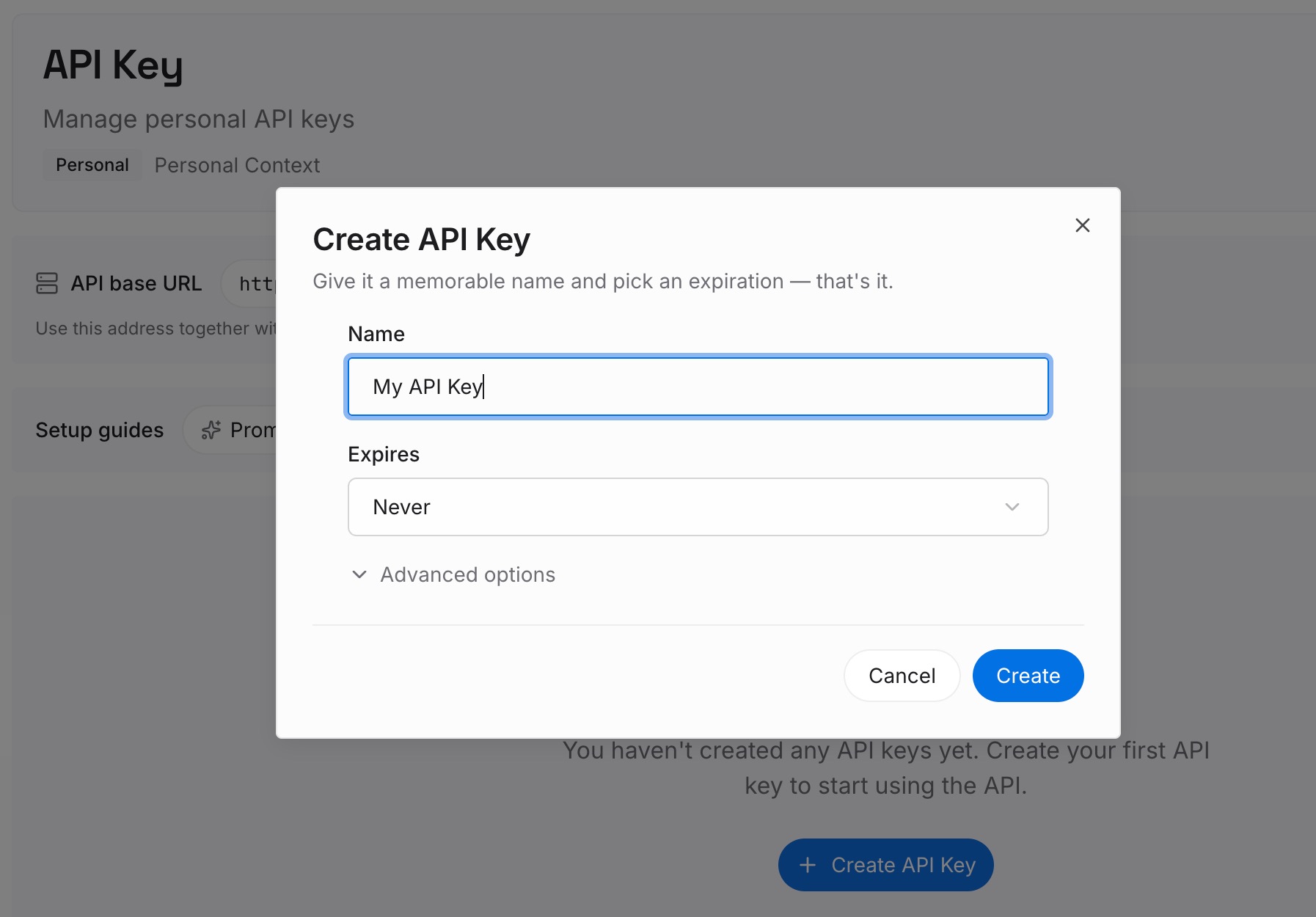
Step 1: Create an API key
Sign in and generate a key from the dashboard. Store it somewhere private, like any other credential.
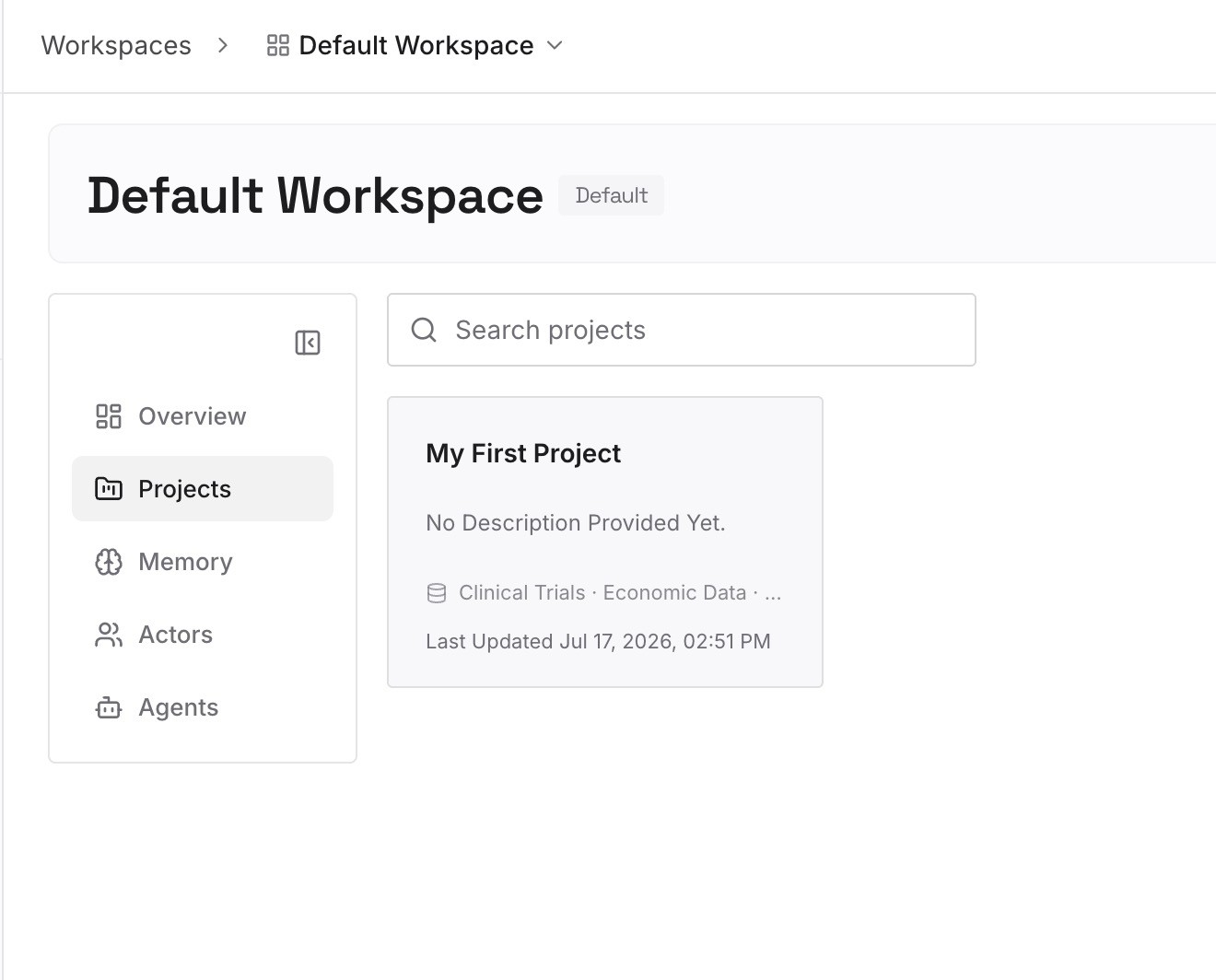
Step 2: Upload your first memories
Start with what you wrote in Step 4 of the fix: what each errand needed. Leave passwords out. One errand per entry.
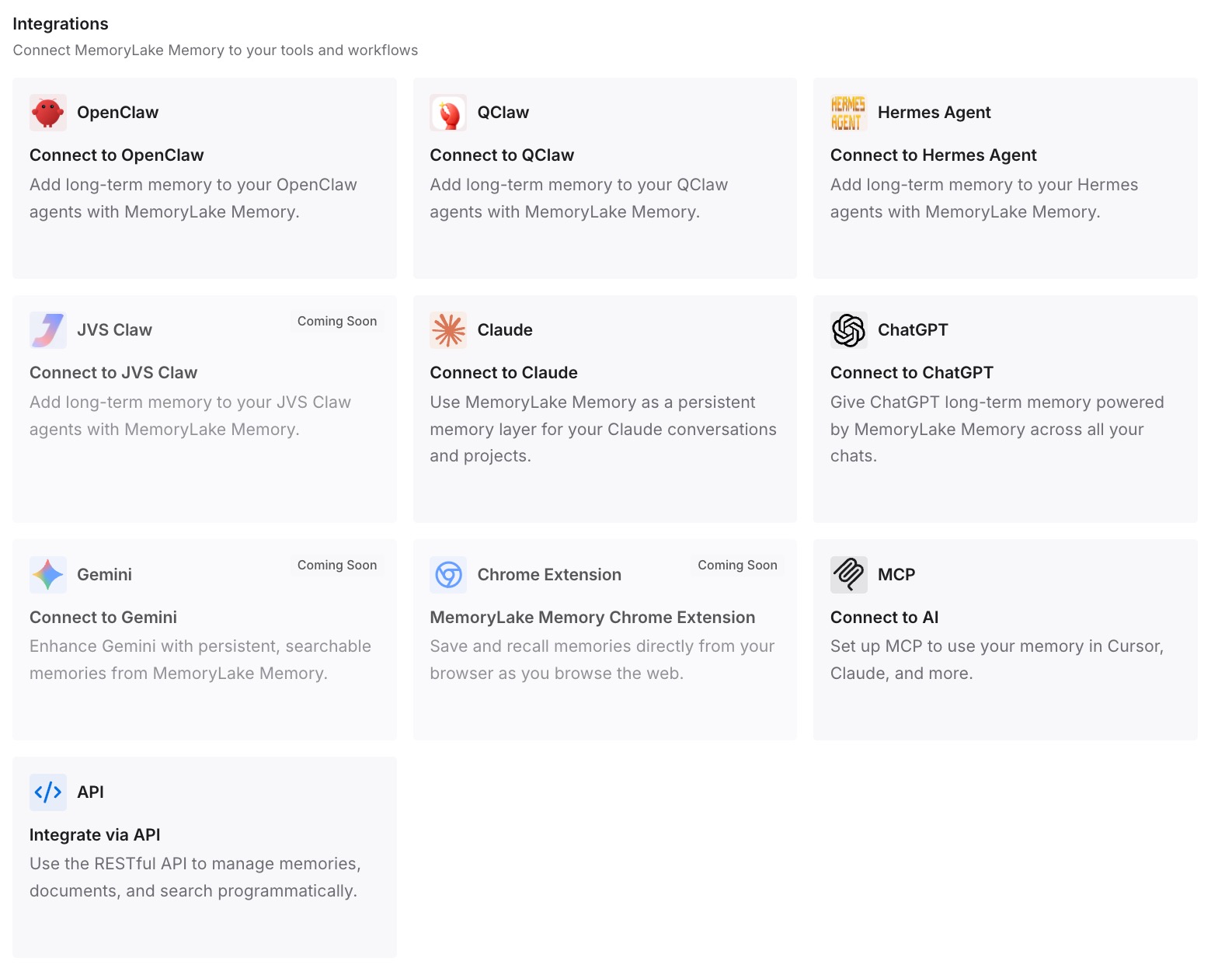
Step 3: Connect your AI & agents
Connect ChatGPT, Codex, Claude Code, and the other assistants you use. Each can start a task with the same preferences.
What this changes in practice
The first difference is a faster restart. Recreating an errand in Work starts from notes, not memory.
The second is cleaner history. You can delete old agent chats without losing the details that mattered.
The third is consistency across tools. The same preferences are available in ChatGPT and in other assistants.
Best practices after agent mode's retirement
Use Work for multi-step tasks. It's the documented replacement.
Let ChatGPT choose the cloud browser. You don't select it separately.
Sign in through the secure form. Never paste credentials into chat.
Set website access deliberately. Always allow isn't recommended.
Clean up old agent data. Chats and screenshots stay until you delete them.
Check scheduled tasks. Recreate the ones you still need.
Conclusion
ChatGPT agent mode is no longer available. OpenAI's help article points to ChatGPT Work for longer, multi-step tasks and to the cloud browser for supported website tasks. The cloud browser gives Work its own browser on a separate computer, is available on paid plans excluding Free and Go, and is chosen automatically when a task needs it.
Your old agent chats, browsing history, and screenshots are retained until you delete them, and deleted ones are removed within 90 days. Agent mode kept cookies across sessions, and the cloud browser keeps its own sessions separate from your device. Review old agent data, clear logins you no longer need, recreate recurring tasks in Work, and keep the context those errands depended on in notes you control.